Teacher onboarding
Teach from one course workspace
教师培训
在一个课程工作区完成教学
Watch the Teacher workflows观看教师操作视频
These real-action demos cover the classroom records you will use most—attendance, lessons, scores, activities, homework, grade formulas, and assigned-course volunteering—plus the shared-account workflow for adding Parent access.这些真实操作演示涵盖最常用的课堂记录:考勤、课程、成绩、活动、作业、成绩公式和分配课程中的志愿协助,并补充展示如何通过共享账号流程添加家长权限。
Record lesson and scores记录课程与成绩
Update lesson, homework, and formula更新课程、作业和成绩公式
Manage classroom-help volunteers管理课堂协助志愿者
Link a Parent profile to an existing account将家长资料连接到现有账号
Turn on English or Chinese captions from the player menu. All examples use fictional Sunshine data.请从播放器菜单打开英文或中文字幕。所有示例均使用阳光学校虚构资料。
This is the practical guide for a teacher’s first week: find an assigned course, record today’s work, keep grades current, and communicate with enrolled families.
Before your first class
- Sign in and confirm that Teacher is the active role. If you have more than one role, use the role switcher before you work.
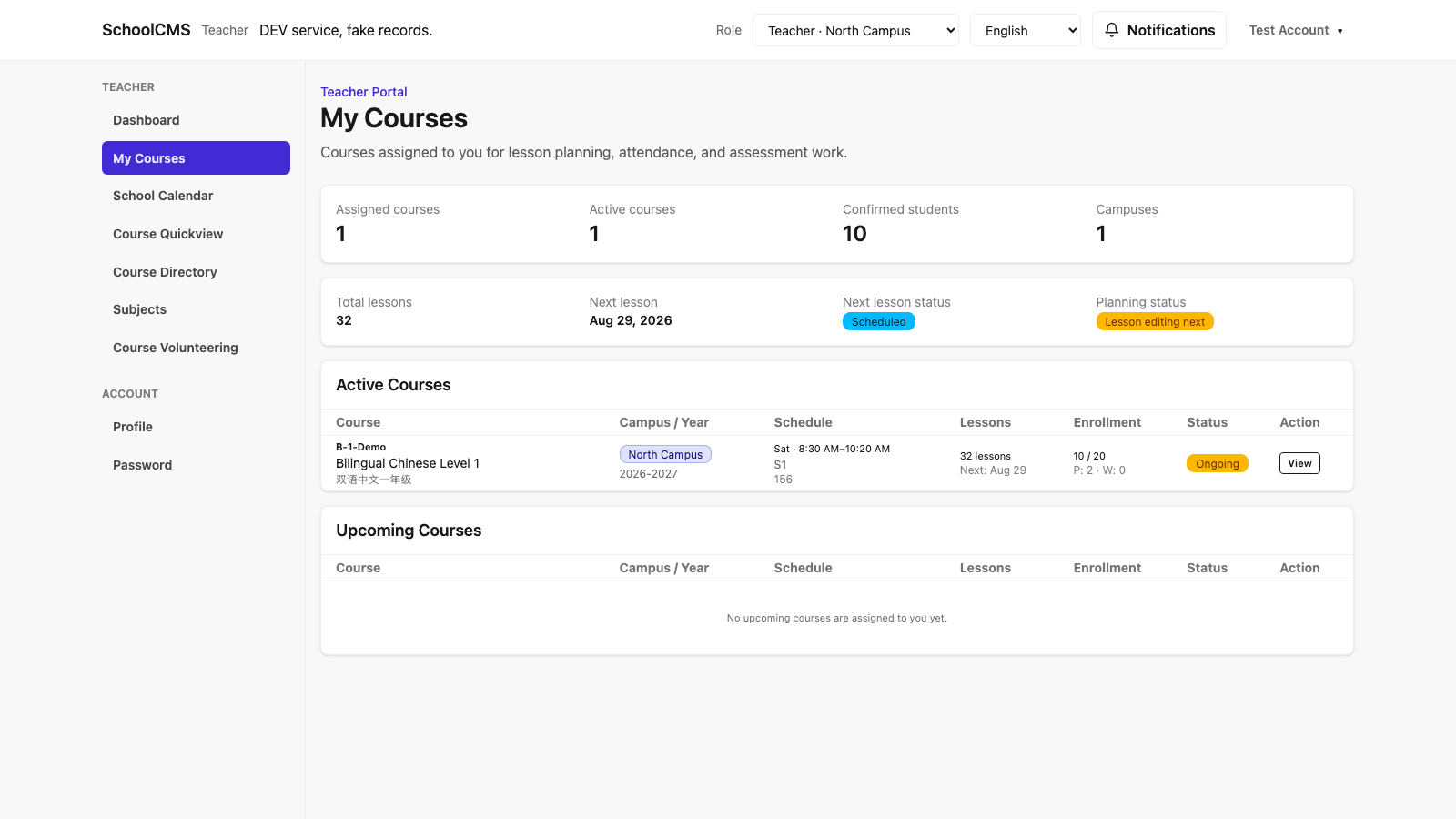
- Open My Courses. Only courses assigned to you should appear. Check the course name, school year, meeting time, and roster.
- If a course or student is missing, stop and contact Staff. Do not keep a separate roster or add the student yourself.
Privacy: Use your own account, lock or sign out of shared devices, and do not download, photograph, or share student information outside the school’s approved process.
Your daily course routine
1. Start in My Courses
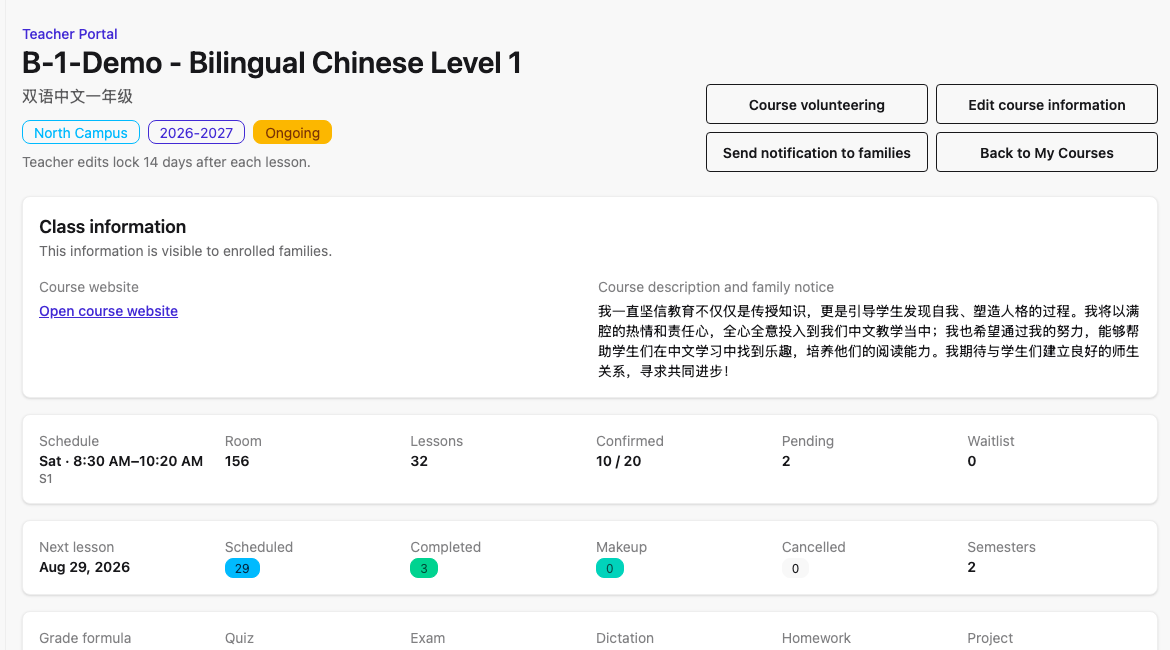
Open the assigned course—not the Course Directory—for roster, attendance, lessons, assessments, and grades.
2. Record attendance
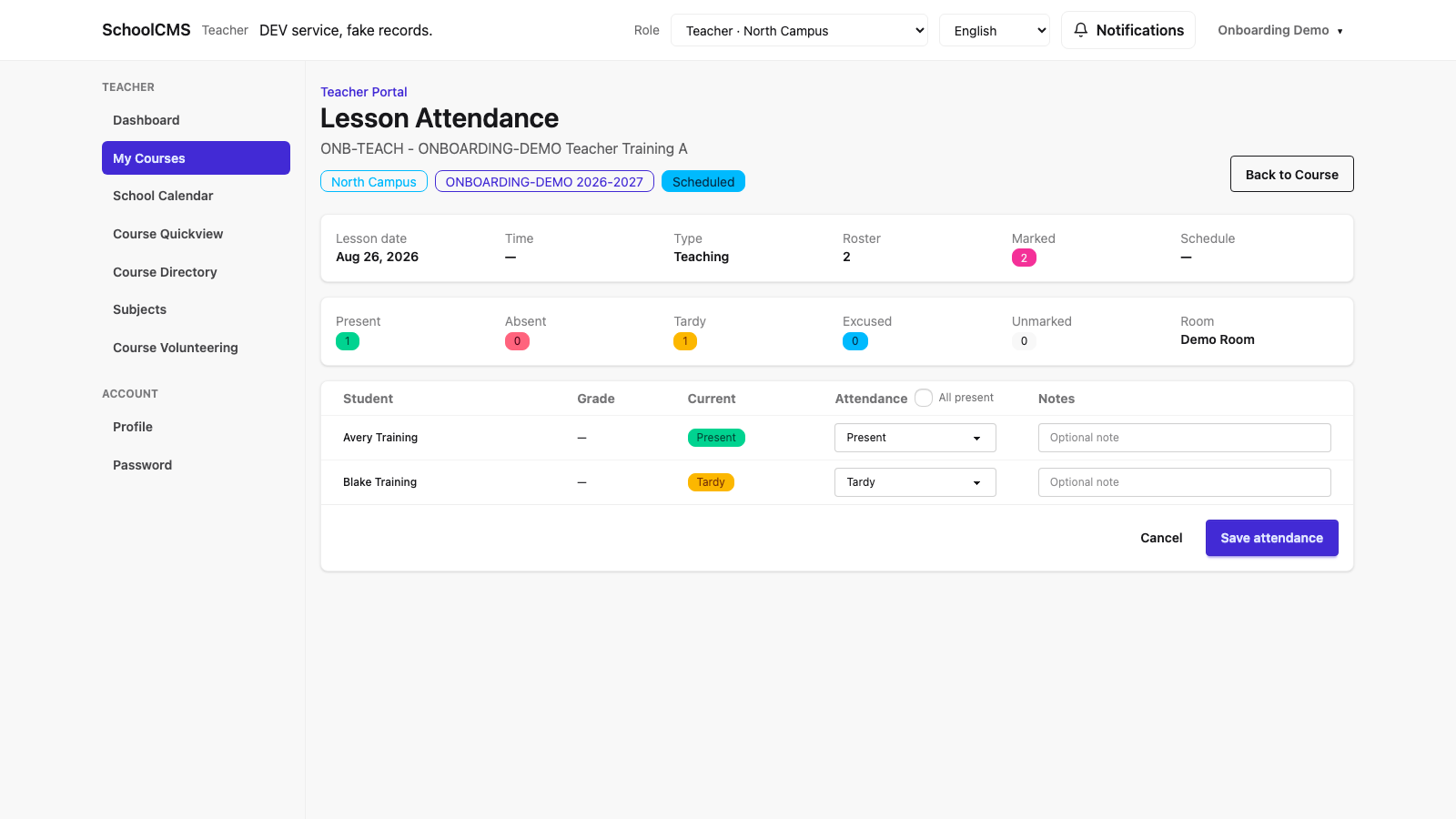
In the course workspace, open the lesson/date, mark each enrolled student’s attendance, then save before leaving the page.
3. Update the lesson or activity
Record what was taught and the next activity in the course lesson area. Keep the entry clear enough for families and the school team to understand.
4. Follow up
Use the course notice/notification tools for course-wide information. Send only the information families need; use Staff for enrollment or billing questions.
- Confirm the lesson date before you edit anything.
- Check that the visible roster matches the students who attended this class.
- Choose the correct status for each student; use a note only when your school needs one.
- Select Save attendance, then verify that the saved record still shows the intended statuses.
Grades and progress
- Create or open an assessment in the assigned course. Use a clear name and the correct assessment date.
- Enter scores for the course roster and save. Review the entered values before you leave the page.
- Review the grade formula before relying on calculated results. Ask Staff or the Principal if the course setup appears wrong; do not improvise a different calculation outside SchoolCMS.
- Review final grades only when the course is ready. Follow your school’s review/publishing process before making results final.
Editing window: Some attendance, lesson, or grade actions may become locked after the allowed edit period. Do not work around a lock with a second record; contact Staff or the Principal with the course, date, and needed correction.
Optional volunteer classroom help
If your campus runs a volunteer program, use it only for help assigned to your course. In that course, review the roster and signups; make or adjust volunteer assignments; manage capacity and future occurrences; and use the fair-assignment tools when the school needs an equitable placement decision. Review the volunteer’s event and classroom task, confirm their arrival through the approved process, and keep student records, attendance, grades, and family contact details private.
Role boundary: You cannot access another course’s volunteers or create a new volunteer series or event. You may edit a volunteer series only while it is a draft. Send cross-course, new-series, or new-event requests to Staff; if Staff is unavailable, an authorized Principal can operate the volunteer workflow.
Watch above: the classroom-help video shows the assigned-course roster, fair-assignment view, and a saved manual assignment.
Use one account for teaching and parent access
If your existing Teacher account also needs parent access, open Profile → Add parent profile. Match the correct family and enrolled student, complete the personal-email confirmation step, then switch to Parent and verify the linked student. This keeps teaching and family access under one login; it does not create a second account.
Watch above: the shared-account video uses the Staff UI because the linking action is an account-profile workflow, then shows the same account in the Parent dashboard.
Know your boundaries
| When you need to… | Do this |
|---|---|
| Change a student’s enrollment, course placement, or family record | Send the request to Staff. |
| Change course setup, capacity, calendar, or teacher assignment | Send the request to Staff; calendar approval belongs to the Principal. |
| Resolve a missing assigned course or a locked teaching record | Contact Staff with the course and date. |
| Answer a payment or invoice question | Direct the family to Staff; do not promise a billing change. |
Quick reference
Dashboard
Use for reminders and a quick view of your teaching work.
School Calendar
Use for planning and checking no-class days. You do not approve calendar changes.
Course Directory and Subjects
Reference only. Return to My Courses for class records and grades.
Profile and Password
Keep your own contact information current. Never share credentials.
End-of-week checklist
- ☐ Attendance is saved for every taught lesson.
- ☐ Lesson/activity notes are current.
- ☐ New assessment scores have been reviewed and saved.
- ☐ Family notices are accurate and sent only to the intended course audience.
- ☐ Roster, enrollment, and billing issues have been handed to Staff.
这是教师第一周的实用指南:找到已分配课程、记录当天教学、及时维护成绩,并与已报名家庭沟通。
第一次上课前
- 登录后确认当前角色为 Teacher 教师。如果您有多个角色,请先使用角色切换器。
- 打开 My Courses 我的课程。这里只应显示分配给您的课程。确认课程名称、学年、上课时间和学生名单。
- 如果课程或学生缺失,请停止操作并联系 Staff 员工。不要另建名单,也不要自行添加学生。
隐私:只使用自己的账号;共用设备要锁屏或退出;不要在学校批准流程外下载、拍摄或分享学生信息。
每天的课程流程
1. 从 My Courses 开始
打开已分配的课程,而不是 Course Directory 课程目录。名单、考勤、课程内容、测评和成绩都在课程工作区。
2. 记录考勤
在课程工作区打开当天 lesson/日期,标记每位已报名学生的考勤,再离开页面前保存。
3. 更新 lesson 或 activity
在课程 lesson 区记录所教内容和下一步活动。说明要让家庭和学校团队也能看懂。
4. 后续沟通
使用课程 notice/notification 工具发送全班信息。只发送家庭需要的信息;报名或付款问题交给 Staff。
- 修改前先确认 lesson 日期。
- 确认显示的名单与本次到课学生相符。
- 为每位学生选择正确状态;仅在学校需要时添加备注。
- 选择 Save attendance,再确认保存后的记录仍显示预期状态。
成绩与学习进度
- 在已分配课程中创建或打开 assessment 测评,使用清楚的名称和正确日期。
- 为课程名单输入 scores 分数并保存。离开页面前复核输入内容。
- 依赖计算结果前先查看 grade formula 成绩公式。如果课程设置不正确,请询问 Staff 或 Principal;不要在系统外自行采用另一套计算方式。
- 课程准备完成后再查看 final grades 期末成绩。公布前遵循学校的复核/发布流程。
编辑时限:部分考勤、lesson 或成绩操作会在允许编辑期后锁定。不要通过新建重复记录绕过锁定;请提供课程、日期和需更正内容给 Staff 或 Principal。
可选的志愿者课堂协助
如果校区运营志愿服务项目,只能使用分配给您课程的协助。在该课程中,您可以查看名单和报名;新增或调整志愿者分配;管理容量和未来场次;并在学校需要公平安排时使用公平分配工具。查看志愿者的活动和课堂任务,按学校批准的流程确认到场,并保护学生记录、考勤、成绩和家庭联系方式。
权限范围:您不能访问其他课程的志愿者,也不能创建新的志愿系列或活动。只有志愿系列仍为草稿时才可编辑。跨课程、新系列或新活动请求请交给 Staff;Staff 不在时,获授权的 Principal 也可操作志愿服务流程。
请观看上方视频:课堂协助视频展示分配课程的名单、公平分配页面以及已保存的手动分配。
用一个账号同时管理教学和家长权限
如果现有教师账号还需要家长权限,请打开个人资料 → Add parent profile。匹配正确的家庭和已报名学生,完成个人邮箱确认步骤,然后切换到家长角色核对已连接的学生。这样教学和家庭权限共用一个登录账号,不需要创建第二个账号。
请观看上方视频:共享账号视频使用员工界面,因为连接操作属于账号个人资料流程;随后展示同一个账号的家长首页。
了解权限边界
| 当您需要… | 应这样做 |
|---|---|
| 修改学生报名、课程安排或家庭资料 | 交给 Staff。 |
| 修改课程设置、容量、校历或教师分配 | 交给 Staff;校历审批属于 Principal。 |
| 处理缺少已分配课程或被锁定的教学记录 | 联系 Staff,并说明课程和日期。 |
| 回答付款或发票问题 | 请家庭联系 Staff;不要承诺账单变更。 |
快速参考
Dashboard 总览
用于查看提醒和教学工作概况。
School Calendar 校历
用于备课和查看停课日;您不审批校历变更。
Course Directory / Subjects
仅供参考。处理班级记录和成绩时回到 My Courses。
Profile / Password
保持自己的联系方式最新,绝不分享账号密码。
每周结束清单
- ☐ 每节已上课程的考勤均已保存。
- ☐ lesson/activity 记录已更新。
- ☐ 新的测评分数已复核并保存。
- ☐ 家庭通知准确,且只发送给正确的课程对象。
- ☐ 名单、报名和账单问题已交给 Staff。