Staff onboarding
Support the right student at the right campus
员工培训
在正确校区为正确学生提供支持
Watch the Staff workflows观看员工操作视频
Use these short, real-action Sunshine demos before your first production task. Each video pauses on the saved result so you can match the screen to the written steps.在第一次生产操作前观看这些简短的阳光学校真实操作演示。每段视频都会停留在保存后的结果页面,方便对照文字步骤。
Update enrollment更新报名
Volunteer event and roster志愿活动和名单
Link a Parent profile to an existing account将家长资料连接到现有账号
Captions are available in English and Chinese. The recordings use fictional Sunshine data; never enter production student or family information in a training take.视频提供英文和中文字幕。录制使用阳光学校虚构资料;不要在培训操作中输入生产环境的学生或家庭信息。
Use this guide for daily campus operations: find the student first, make the correct enrollment change, keep course information reliable, and give families accurate next steps.
Start every request safely
- Confirm that Staff is the active role and that you are working in the correct campus before viewing or changing records.
- Start in Students for most family questions. Confirm the correct student/family before you act; similar names are possible.
- Read enrollment status and invoice/payment status separately. An unpaid invoice does not by itself tell you whether an enrollment is active.
Privacy: Discuss records only with an authorized family member. Use your own account, do not export or share student data casually, and sign out of shared devices.
Registration and enrollment changes
New Registration
- Search for the student/family first to avoid a duplicate record.
- Use New Registration only when a new registration is appropriate.
- Review student, guardian, campus, school year, courses, and fees before submitting.
Update Enrollment
- Search for the existing student and select the current enrollment.
- Choose the correct action: Add a course, Transfer to another course, or Drop a course.
- Review the resulting enrollment and billing context before confirming.
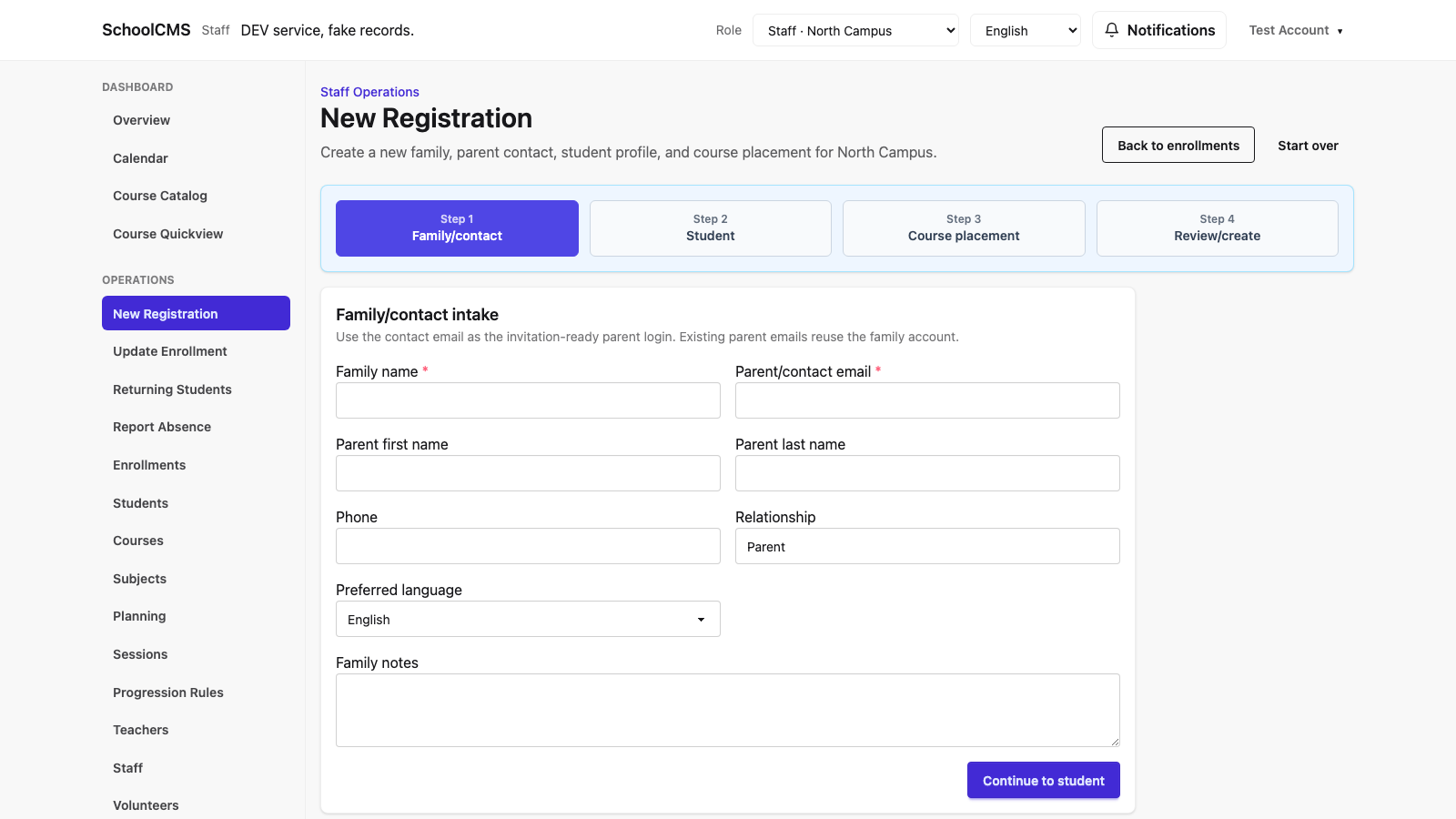
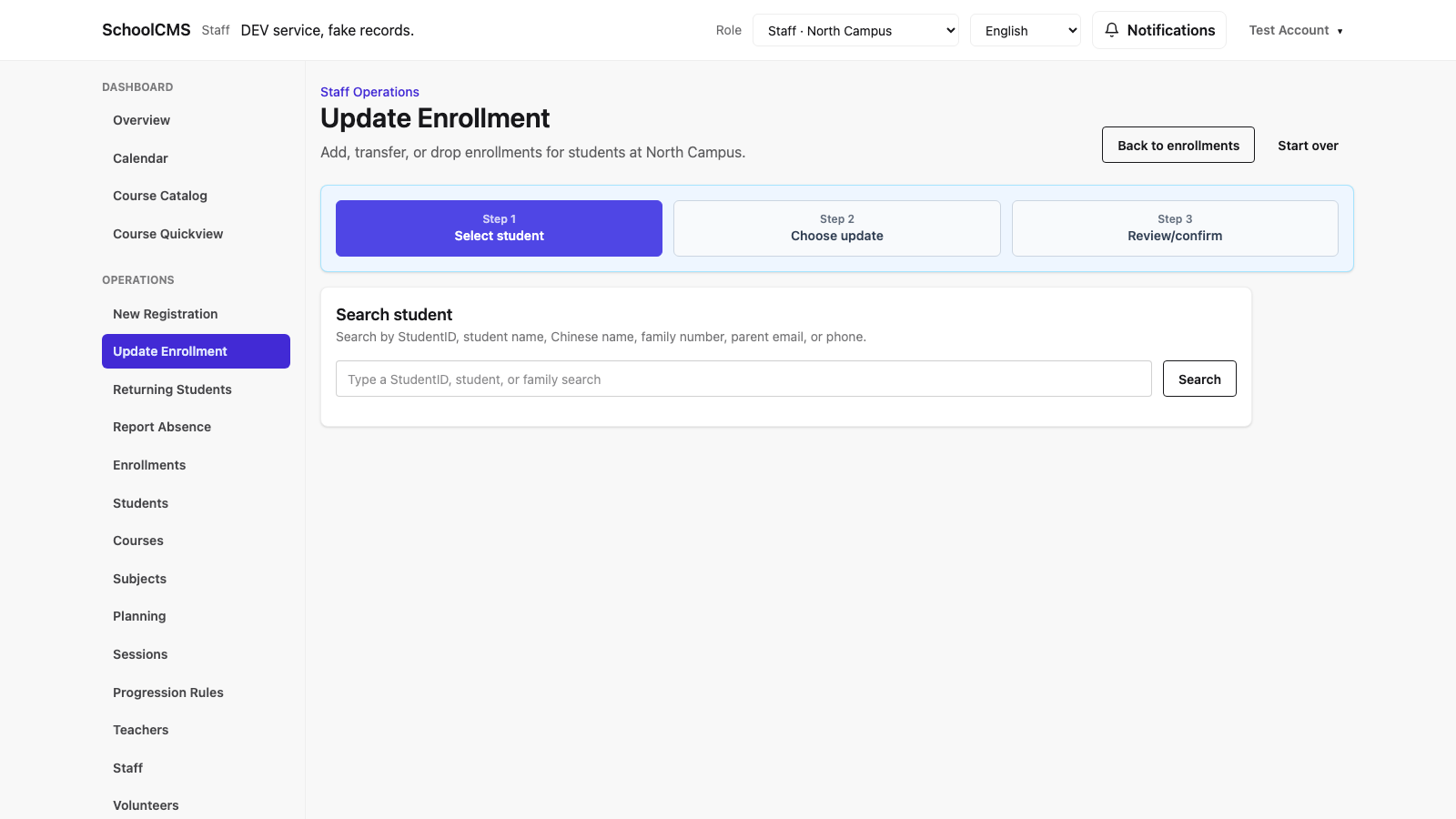
Before you submit: compare the requested change with the student’s current courses, schedule, enrollment status, and invoice context. If the effect is unclear, pause and ask the designated school owner.
Common student-support work
| Need | Where to work | Finish by checking |
|---|---|---|
| Find a family, enrollment, or course context | Students, then the student detail | Correct student, campus, and school year |
| Review or follow up on an enrollment | Enrollments | Status is correct; payment/invoice status reviewed separately |
| Support a returning student | Progression/returning-student workflow | Destination year/course selection and family details |
| Record a family-reported absence | Report Absence | Correct student, course, and lesson date |
| Answer a course availability question | Course Catalog and Courses | Correct campus and school-year filters |
| Review a billing question | Invoices or Outstanding | Invoice belongs to the right student/course; no duplicate payment action |
Keep campus operations ready
Courses and teacher assignments
Use Courses and Teachers to review course details, capacity, schedule, and assigned teacher. Check school year and campus before any change.
Planning and calendar drafts
Use Planning to prepare or submit calendar work. A Staff submission is not final until the Principal has approved it.
Enrollment and course status
Keep student placement and course information in SchoolCMS. Do not solve a roster issue through a separate spreadsheet.
Billing support
Use invoices and outstanding balances to explain current records. Do not mark money received until the school’s payment-confirmation process is complete.
Optional volunteer management
When your campus enables volunteering, Staff is the recommended operational owner: set up the program → create a volunteer series → create events → review the roster. Confirm the campus, dates, capacity, and assigned course/classroom before publishing an event. Review signups and waitlists in the roster; communicate only through approved school channels and share the minimum information needed for the event.
Role boundary: Authorized Principals also have volunteer-operations capability, so coordinate ownership instead of duplicating work. Teachers manage help only in their assigned course; Parents can sign up, edit, or cancel only their family’s volunteer commitment and may see a waitlist outcome. Do not use this workflow to disclose student records, volunteer contact information, or other families’ details.
Watch above: the Staff volunteer video demonstrates category and campus-session setup, Series approval, event generation, and the public roster using fictional Sunshine data.
Link parent access without creating a second login
When an existing Staff, Teacher, or Principal account also needs parent access, use Profile → Add parent profile. Match the correct family and enrolled student, review the confirmation screen, and complete the personal-email confirmation step. The new Parent profile is linked to the same account; do not create a second login for the same person.
Watch above: the shared-account video shows the Staff UI, the family/student match, and the final Parent dashboard. In a live account, follow the confirmation email and verify the linked student after switching to Parent.
What Staff does not approve
| Request | Next step |
|---|---|
| Teacher approval or access approval | Route to the Principal. |
| Calendar approval, return, or rejection | Submit/prepare the calendar; route final review to the Principal. |
| Staff activation/deactivation, campus administration, or course closure | Route to the Principal. |
| Payment setup, banking, or technical payment-provider issue | Route to the Principal and the designated finance/technical owner. |
Helpful handoff: include the student/course, campus, school year, requested action, and what you already checked. Never include passwords or payment credentials in a note or email.
Quick reference
Overview and Campus Overview
Use for daily context. Confirm campus before acting.
Course Catalog, Subjects, and Calendar
Use for reference and planning. Principal approval is required where shown.
Profile and Password
Update only your own account details; never share credentials.
Notifications
Read system notices and communicate through approved school channels. Do not place sensitive details in a broad notice.
End-of-day checklist
- ☐ Every changed record was reviewed in the correct campus and school year.
- ☐ New registrations were checked for duplicates before submission.
- ☐ Add, transfer, and drop changes were confirmed against enrollment and billing context.
- ☐ Calendar work awaiting approval is clearly identified for the Principal.
- ☐ Sensitive, unresolved, or permission-bound requests were handed to the correct owner.
本指南用于日常校区运营:先找到正确学生,再进行正确的报名变更,保持课程信息可靠,并给家庭明确的下一步。
安全地开始每一个请求
- 确认当前角色为 Staff 员工,并在查看或修改记录前确认校区正确。
- 多数家庭问题先从 Students 学生 开始。操作前确认学生/家庭正确;可能有相同或相似姓名。
- 报名状态与发票/付款状态要分别查看。未付款发票本身不能说明报名是否有效。
隐私:只与有权限的家庭成员讨论记录;使用自己的账号;不要随意导出或分享学生数据;共用设备要退出登录。
新报名和报名变更
New Registration 新报名
- 先搜索学生/家庭,避免创建重复记录。
- 只有确实需要新报名时才使用 New Registration。
- 提交前复核学生、监护人、校区、学年、课程和费用。
Update Enrollment 更新报名
- 搜索现有学生并选择当前报名。
- 选择正确操作:Add 添加课程、Transfer 转到另一课程,或 Drop 退出课程。
- 确认前复核变更后的报名和账单信息。
提交前:将请求与学生当前课程、时间表、报名状态和发票信息比较。如果影响不明确,请暂停并询问指定学校负责人。
常见学生支持工作
| 需求 | 操作位置 | 完成前检查 |
|---|---|---|
| 查找家庭、报名或课程信息 | Students,然后学生详情 | 学生、校区和学年正确 |
| 查看或跟进报名 | Enrollments | 状态正确;付款/发票状态已单独查看 |
| 支持返校学生 | Progression/returning-student 流程 | 目标学年/课程选择和家庭资料 |
| 记录家庭报告的缺勤 | Report Absence | 学生、课程和上课日期正确 |
| 回答课程空位问题 | Course Catalog 和 Courses | 校区与学年筛选正确 |
| 查看账单问题 | Invoices 或 Outstanding | 发票属于正确学生/课程;没有重复付款操作 |
保持校区运营准备就绪
课程和教师分配
使用 Courses 和 Teachers 查看课程详情、容量、时间和已分配教师。每次更改前确认学年和校区。
Planning 和校历草稿
使用 Planning 准备或提交校历。Staff 提交后,必须经 Principal 审批才算最终完成。
报名和课程状态
把学生安排和课程信息保留在 SchoolCMS 中,不要用单独表格解决名单问题。
账单支持
使用发票和未结余额解释当前记录。未经学校付款确认流程完成,不要标记已收款。
可选的志愿者管理
当校区启用志愿服务时,建议由 Staff 负责日常运营:设置项目 → 创建志愿系列 → 创建活动 → 查看名单。发布活动前确认校区、日期、容量和分配的课程/教室。在名单中查看报名和候补;只通过学校批准的渠道沟通,并且仅分享活动所需的最少信息。
权限范围:获授权的 Principal 也具有志愿服务运营权限,因此应协调负责人,避免重复操作。教师只管理分配给自己课程的协助;家长只能为自己家庭报名、编辑或取消志愿承诺,并可能看到候补结果。不得利用此流程泄露学生记录、志愿者联系方式或其他家庭的信息。
请观看上方视频:员工志愿服务视频使用阳光学校虚构资料,演示类别和校园时段设置、系列审批、活动生成以及公开名单。
在不创建第二个登录账号的情况下连接家长权限
如果现有的员工、教师或校长账号还需要家长权限,请使用个人资料 → Add parent profile。匹配正确的家庭和已报名学生,查看确认页面,然后完成个人邮箱确认步骤。新的家长资料会连接到同一个账号;同一个人不要创建第二个登录账号。
请观看上方视频:共享账号视频展示员工界面、家庭/学生匹配,以及最后的家长首页。实际账号请按确认邮件完成操作,再切换到家长角色核对已连接的学生。
Staff 不负责最终审批的事项
| 请求 | 下一步 |
|---|---|
| 教师审批或访问权限审批 | 交给 Principal。 |
| 校历审批、退回或拒绝 | 准备/提交校历;最终审核交给 Principal。 |
| 员工启用/停用、校区管理或课程关闭 | 交给 Principal。 |
| 付款设置、银行信息或支付服务技术问题 | 交给 Principal 与指定财务/技术负责人。 |
有效交接:附上学生/课程、校区、学年、请求操作和已检查内容。绝不要在留言或邮件中写密码或付款凭据。
快速参考
Overview / Campus Overview
用于日常概览。操作前确认校区。
Course Catalog、Subjects、Calendar
用于查询和计划;需要审批的项目须由 Principal 审批。
Profile / Password
只更新自己的账号资料,绝不分享凭据。
Notifications 通知
阅读系统通知并通过学校批准的渠道沟通。不要在群发通知中包含敏感信息。
每日结束清单
- ☐ 每项变更都已在正确校区和学年中复核。
- ☐ 新报名提交前已检查重复记录。
- ☐ 添加、转课和退课均已结合报名与账单信息确认。
- ☐ 待审批的校历工作已清楚标记给 Principal。
- ☐ 敏感、未解决或受权限限制的请求已交给正确负责人。