Principal onboarding
Run your campus with confidence
校长培训
自信地管理您的校区
Watch the Principal workflows观看校长操作视频
Use these approval and account-continuity demos to see the decision boundary before you review a live request, calendar, or linked family profile.在审核实际申请、校历或已连接的家庭资料前,先观看这些审批和账号连续性演示,了解决策边界。
Review the school calendar审核校历
Link a Parent profile to an existing account将家长资料连接到现有账号
Captions are available in English and Chinese. Use the live record and your school’s approval process—not the demo alone—to make decisions.视频提供英文和中文字幕。实际决策请以实时记录和学校审批流程为准,不要只依赖演示。
Use the Principal role to set direction, approve high-impact changes, and keep your campus ready. Work only in the campus shown in your active context.
Your first five minutes
- Choose Principal in the role switcher and confirm the correct campus.
- Open Overview to spot approval, staffing, enrollment, and billing signals.
- Open each related record before acting; dashboard counts are prompts for review, not decisions by themselves.
Privacy: Use an individual account, lock or sign out of shared devices, and discuss student or billing details only with authorized school personnel.
Essential work before launch
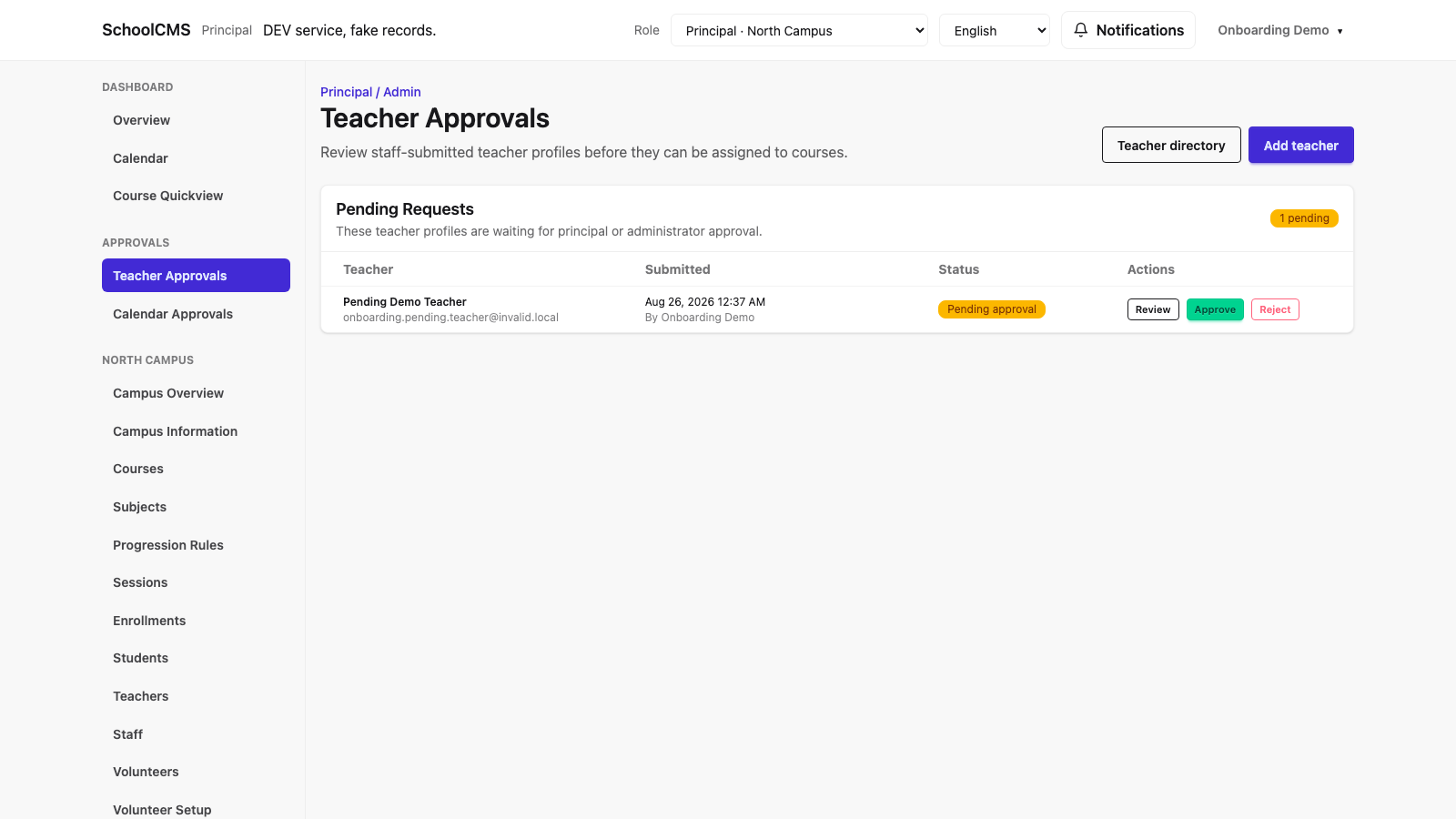
Decision check: teacher approval
- Confirm that your active role and campus are correct before acting.
- Verify the person, campus, and teaching need through your school’s hiring or operations process.
- Open Review and check the full request before choosing an outcome.
- Choose Approve only when authorized, or Reject when the request should not proceed. Approval grants the teacher persona; it does not assign a course.
Decision check: calendar approval
- Confirm that your active role and campus are correct before acting.
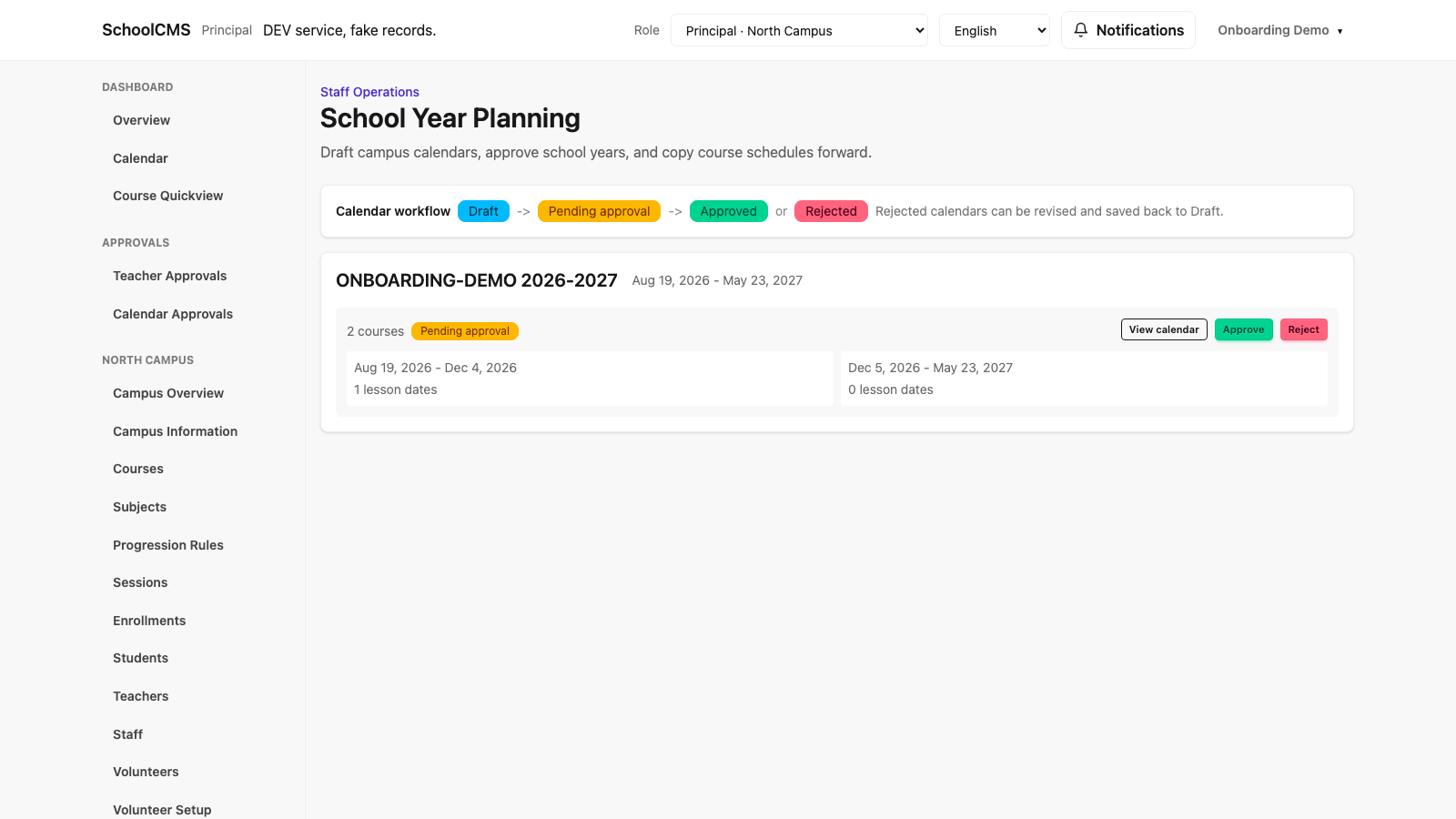
- Confirm the calendar is in Pending approval; a draft, approved, or rejected calendar needs a different response.
- Check the school-year dates, term ranges, and lesson counts for the calendar’s operational impact.
- Open View calendar to review the dates and no-class days, then return to approve or reject according to your school’s process.
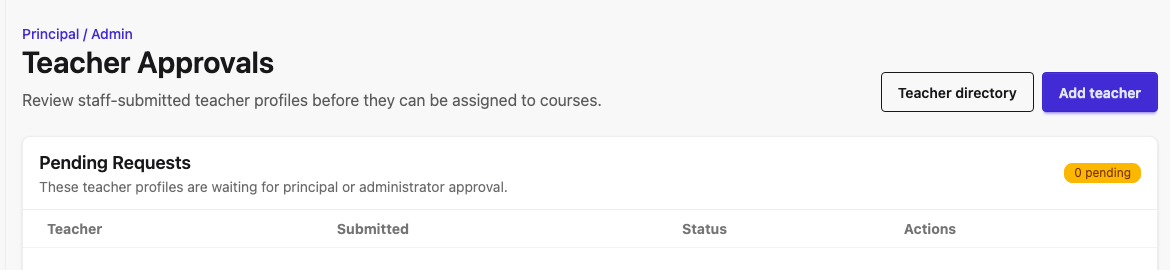
Reference: no pending teacher requests
Principal and Staff: the enrollment boundary
Principals can review enrollment information and resolve policy questions. Staff performs the operational enrollment work: New Registration and Update Enrollment (add, transfer, or drop). Do not ask a teacher or parent to alter a record they cannot manage.
Escalate clearly: send a Staff request with the student, desired effective date, course, and approved decision. Do not include more personal information than needed.
Payment and billing safety
- Review an invoice before discussing a balance or recording any follow-up.
- Keep payment setup changes out of active family checkout periods unless finance has approved the timing.
- Do not collect card or bank details by email, chat, screenshots, or paper notes.
- For payment setup, Stripe connection, refund, or transaction concerns, use the school’s finance/technical escalation path.
Optional volunteer program oversight
If your campus enables volunteering, use the Staff volunteer operations material for the working sequence: program setup, series, events, and roster review. Principal oversight should focus on policy, capacity, safety, and escalation—not duplicate Staff event work. Teachers receive assigned classroom help; Parents manage only their own family’s signup, edit/cancel action, and waitlist result.
Watch above: the Principal videos cover teacher approval and calendar review; use the Staff volunteer video when you need the full setup-to-roster sequence.
Keep one account connected to its family role
An existing Principal account can also link a Parent profile when the person needs family access. Open Profile → Add parent profile, match the correct family and enrolled student, complete the personal-email confirmation step, then switch to Parent and verify the linked student. Keep one person’s school responsibilities and family access on the same account instead of creating a duplicate login.
Watch above: the shared-account video demonstrates the account-profile link from the Staff UI and the final Parent dashboard. Follow the live confirmation process and verify the family record before relying on it.
Useful references
Students and Enrollments: investigate a family question. Profile and Password: maintain your own account only. If your school enables a volunteer program, use the separate volunteer operations material rather than treating it as a required launch workflow.
This guide uses current, safe demo captures. Never use a screenshot as the only basis for approving a teacher.
校长角色用于确定校区方向、审批高影响变更,并保持校区准备就绪。请只在当前上下文显示的校区内操作。
前五分钟
- 在角色切换器中选择校长,并确认校区正确。
- 打开总览,查看审批、人员、报名和账单提示。
- 操作前打开相关记录;首页数字只是需要查看的提示,不是单独的决策依据。
隐私:请使用个人账号;共用设备要锁定或退出;学生和账单信息只与获授权的学校人员讨论。
上线前必须掌握的工作
操作核对:教师审批
- 操作前确认当前角色和校区正确。
- 按学校的聘用或运营流程核实人员、校区和教学需求。
- 先打开 Review,检查完整申请后再决定结果。
- 只有在已获授权时才选择 Approve;申请不应继续时选择 Reject。批准会授予教师角色,但不会分配课程。
操作核对:校历审批
- 操作前确认当前角色和校区正确。
- 确认校历处于 Pending approval;草稿、已批准或已拒绝的校历需要不同处理。
- 检查学年日期、学期范围和课次数量,了解校历的运营影响。
- 打开 View calendar 查看日期和停课日;再按学校流程返回批准或拒绝。
参考:没有待审批的教师申请
校长与员工:报名职责边界
校长可以查看报名信息并处理政策问题。员工负责实际的报名操作:新生注册和更新报名(添加、转班或退课)。不要要求教师或家长更改他们无权管理的记录。
清楚地升级:向员工提供学生、所需生效日期、课程和已批准的决定;不要包含不必要的个人信息。
付款和账单安全
- 讨论余额或安排后续前,先查看发票。
- 活跃的家长付款期间,未经财务同意不要更改付款设置。
- 不要通过邮件、聊天、截图或纸质记录收集银行卡或银行信息。
- 付款设置、Stripe 连接、退款或交易问题,请按学校的财务/技术升级流程处理。
可选的志愿服务项目监督
如果校区启用志愿服务,请使用 Staff 志愿服务运营材料了解实际顺序:项目设置、系列、活动和名单查看。Principal 的监督应聚焦政策、容量、安全和升级处理,而不是重复 Staff 的活动操作。教师接收已分配的课堂协助;家长只管理自己家庭的报名、编辑/取消和候补结果。
请观看上方视频:校长视频涵盖教师审批和校历审核;需要完整的志愿服务设置到名单流程时,请观看 Staff 志愿服务视频。
让同一个账号连接家庭角色
如果现有校长账号还需要家庭访问权限,也可以连接家长资料。打开个人资料 → Add parent profile,匹配正确的家庭和已报名学生,完成个人邮箱确认步骤,然后切换到家长角色核对已连接的学生。将一个人的学校职责和家庭访问保留在同一个账号中,不要创建重复登录账号。
请观看上方视频:共享账号视频使用员工界面展示账号个人资料连接流程,随后展示家长首页。实际操作请完成正式确认流程,并先核对家庭记录。
常用参考
学生和报名:调查家庭问题。个人资料和密码:只维护自己的账号。若学校启用了志愿者项目,请使用单独的志愿者运营材料;这不是必需的上线流程。
本指南使用当前、安全的演示截图。审批教师时,绝不可只凭截图作决定。