Parent onboarding
Manage your family’s school information
家长培训
管理您家庭的学校信息
Watch the Parent workflows观看家长操作视频
These demos show the family-only actions you can complete yourself: course requests, absence notices, record review, and volunteering.这些演示展示家长可以自行完成的家庭操作:课程申请、缺勤通知、记录查看和志愿服务。
Report an absence报告缺勤
Review enrollment and assignment查看报名和分配
Sign up for volunteering报名志愿服务
Turn on English or Chinese captions from the player menu. Examples use fictional Sunshine data and never expose another family’s records.请从播放器菜单打开英文或中文字幕。示例使用阳光学校虚构资料,不会显示其他家庭的记录。
The Parent role belongs to your family, not to a campus. Use it to follow your children’s school activity, make requests, review invoices, and contact the right school team.
Start here
- Choose Parent in the role switcher. Select a child when the page asks for one.
- Open Dashboard to see your family’s students, current enrollments, notices, and balances.
- Check Profile for your own contact details and language preference. You may update your own child’s editable profile details. Staff handles enrollment, family-account, and school-record changes that you cannot edit.
Keep accounts private: do not share your sign-in, payment links, or screenshots that show student information. Sign out after using a shared device.
Essential family tasks
1. Check a student’s progress
Open Students, choose your child, then review courses, schedule, attendance, lessons, and available progress information. The amount of information shown depends on the course and school schedule.
2. Add your child for the first time
- From Dashboard, select Add student.
- Enter only verified information for your own child, then select Save student.
- Return to Dashboard and select the child to review the editable profile.
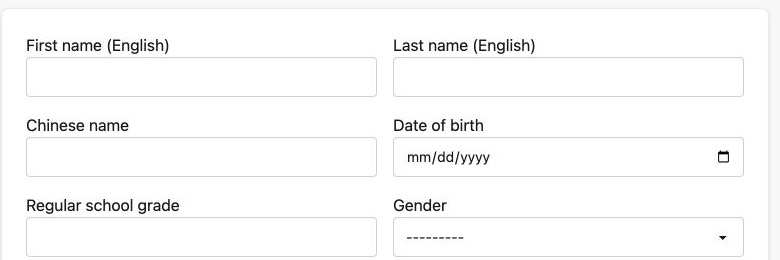
- Enter the child’s verified English name exactly as your school requests.
- Add the requested Chinese name and date of birth carefully; use the child’s own record, not a sibling’s.
- Confirm the regular school grade and gender selection before saving. Contact Staff when a record or enrollment change is not editable here.
3. Browse courses and request enrollment
- Open Course Catalog and choose the correct school year and campus.
- Review the course details, meeting time, eligibility, capacity, and any fee information.
- Submit a request only for the correct child, then check the outcome in the family dashboard or the related enrollment view.
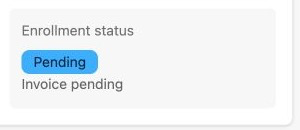
- Use the enrollment-status card to check what happened after you submitted a request.
- Pending means the request still needs school review; it is not a confirmed enrollment.
- Invoice pending is a separate billing state. Follow Staff instructions instead of assuming a request is confirmed or paid.
4. Report or cancel an absence
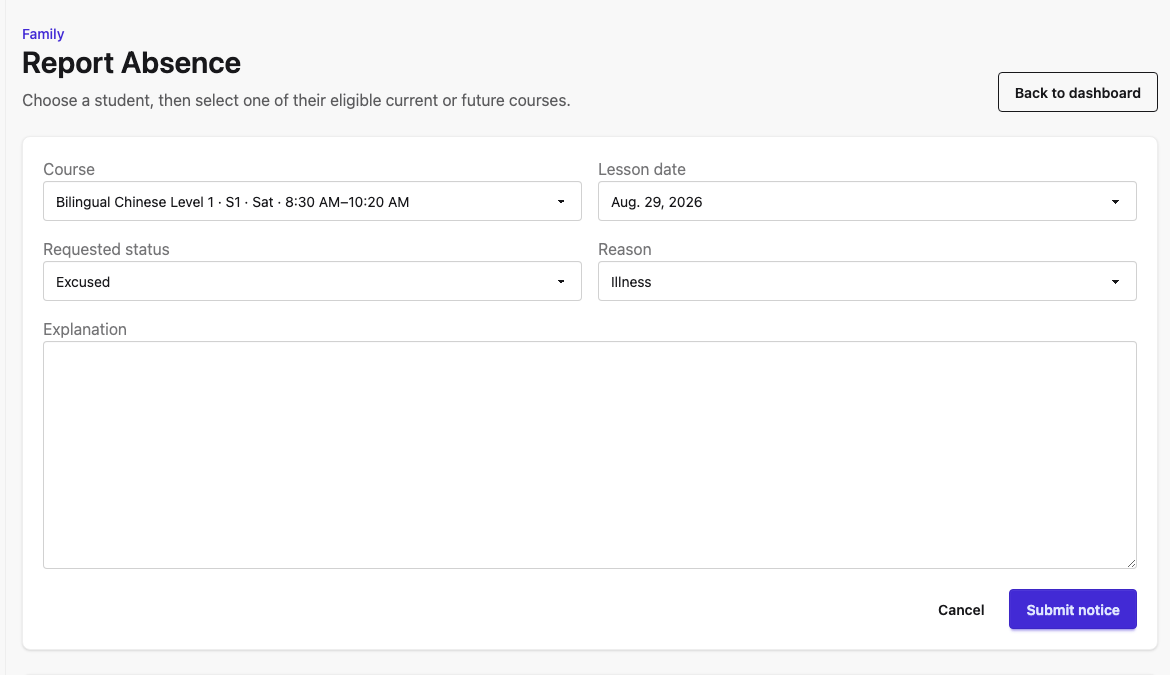
- Open Report Absence.
- Select the correct child, course, and lesson date; add only the information the school needs.
- Submit, then use the available cancellation option only if the absence is no longer needed.
5. Review and pay an invoice safely
- Open Payments and select the invoice.
- Confirm the student, course, amount, and invoice status before starting payment.
- Use the SchoolCMS payment flow; wait for its confirmation before trying again.

- Start by reviewing the invoice lines inside SchoolCMS; do not use a payment link from an email, chat, or screenshot.
- Confirm that each line’s type and description make sense for the family’s school service.
- Confirm the course is correct for the intended child.
- Verify the amount and invoice status in the live record, then use only the SchoolCMS payment flow if payment is needed.
6. Find the right contact
Use Campus Contacts for office and teacher contact information. Staff handles registration, enrollment, and record changes; teachers handle classroom questions; the campus/finance contact handles payment help.
Know what the status means
Enrollment status tells you where the course request stands. Invoice/payment status tells you about billing. They are not the same: an unpaid invoice does not by itself explain whether a request was accepted, and a course request does not prove that payment is complete.
Before contacting school: note the child, course, school year, and the status you see. This helps Staff find the right record without sharing unnecessary details.
Calendar, notices, and optional volunteering
Check the calendar and course schedule before planning attendance. Read notices on your dashboard and contact the campus if a schedule appears inconsistent.
If your campus offers volunteering, use the volunteer invitation for your own family: choose an available event, sign up, then edit or cancel your family’s commitment if plans change. If the event is full, follow the displayed waitlist result. Do not sign up another family, share volunteer rosters, or expect access to classroom, student, or staff records. Ask Staff about event availability or a waitlist question.
Watch above: the volunteer sign-up video demonstrates the family-only signup flow and the saved result.
When to ask for help
- Cannot sign in or choose Parent: contact the school’s account/support contact.
- Student, enrollment, or family record is wrong: contact Staff.
- Coursework, attendance, or classroom question: contact the teacher or campus office.
- Invoice, payment, or refund question: contact Staff or the designated finance contact; do not send payment details.
This guide uses current, safe demo captures. Do not copy student, medical, or payment information into screenshots or messages.
家长角色属于您的家庭,而不是某个校区。您可用它查看孩子的学校活动、提交申请、查看发票,并联系正确的学校团队。
从这里开始
- 在角色切换器中选择家长。页面要求时请选择孩子。
- 打开家庭首页,查看学生、当前报名、通知和余额。
- 在个人资料中检查自己的联系方式和语言偏好。您可以更新自己孩子可编辑的个人资料信息;无法编辑的报名、家庭账户和学校记录变更由员工处理。
保护账号:不要分享登录信息、付款链接或包含学生信息的截图;使用共用设备后请退出登录。
家庭必备操作
1. 查看学生学习情况
打开学生,选择孩子,然后查看课程、日程、考勤、课程内容和可用的学习进度。显示的信息取决于课程和学校安排。
2. 首次添加孩子
- 在家庭首页选择添加学生。
- 只填写自己孩子已经核实的信息,然后选择保存学生。
- 返回家庭首页并选择该孩子,查看可编辑的个人资料。
- 按学校要求准确填写已经核实的孩子英文姓名。
- 仔细填写所需的中文姓名和出生日期;请使用该孩子本人的记录,不要误选兄弟姐妹的信息。
- 保存前确认常规学校年级和性别选择正确。此处无法修改的记录或报名变更,请联系员工。
3. 浏览课程并申请报名
- 打开课程目录,选择正确的学年和校区。
- 查看课程详情、上课时间、资格要求、容量和费用信息。
- 只为正确的孩子提交申请,然后在家庭首页或相关报名页面查看结果。
- 提交申请后,请使用报名状态卡查看申请结果。
- Pending 表示申请仍需学校审核,并不等于报名已确认。
- Invoice pending 是独立的账单状态。请遵循员工说明,不要自行假定申请已确认或已付款。
4. 报告或取消缺勤
- 打开报告缺勤。
- 选择正确的孩子、课程和上课日期;只填写学校需要的信息。
- 提交后,只有在不再需要缺勤时才使用可用的取消选项。
5. 安全查看和支付发票
- 打开付款并选择发票。
- 开始付款前确认学生、课程、金额和发票状态。
- 使用 SchoolCMS 的付款流程;等待确认后再进行其他操作。
- 先在 SchoolCMS 内查看发票明细;不要使用邮件、聊天或截图中的付款链接。
- 确认每一项的类型和说明与家庭使用的学校服务相符。
- 确认课程对应正确的孩子。
- 在实时记录中核对金额和发票状态;如需付款,只使用 SchoolCMS 的付款流程。
6. 找到正确联系人
使用校区联系查看办公室和教师联系方式。员工处理注册、报名和记录修改;教师处理课堂问题;校区/财务联系人处理付款帮助。
理解状态含义
报名状态说明课程申请的进展。发票/付款状态说明账单情况。两者不同:未付发票本身不能说明申请是否接受,课程申请也不能证明付款已完成。
联系学校前:记下孩子、课程、学年和您看到的状态。这能帮助员工找到正确记录,也避免分享不必要的信息。
日历、通知和可选志愿服务
安排出勤前请查看日历和课程时间。阅读家庭首页的通知;日程看起来不一致时请联系校区。
如果校区提供志愿服务,请使用仅面向自己家庭的志愿邀请:选择可参加的活动并报名;计划变化时编辑或取消自己家庭的承诺。活动满额时,请按页面显示的候补结果处理。不要为其他家庭报名、分享志愿者名单,或期望访问课堂、学生或员工记录。活动可用性或候补问题请询问 Staff。
请观看上方视频:志愿报名视频展示仅限家庭的报名流程和保存后的结果。
何时寻求帮助
- 无法登录或无法选择家长角色:联系学校账号/技术支持联系人。
- 学生、报名或家庭记录有误:联系员工。
- 课程、考勤或课堂问题:联系教师或校区办公室。
- 发票、付款或退款问题:联系员工或指定财务联系人;不要发送付款信息。
本指南使用当前、安全的演示截图。不要将学生、医疗或付款信息复制到截图或消息中。